How to Top Up Your Credits
Credits are the currency you use to hire Genies on RemoteGenies. When your balance runs low, you can top up directly from your account without changing your plan.
Which plan are you on?
How top-ups work depends on your current plan.
If you're on a subscription plan (Advanced Monthly or Annual)
You can add credits to your existing subscription at any time — no upgrade, no downgrade, no plan change required. Your subscription details (plan type and renewal date) stay exactly as they are. Only your credit balance increases.
How to top up:
-
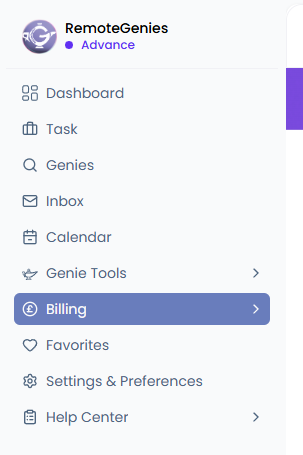
Go to Billing in your account.
-
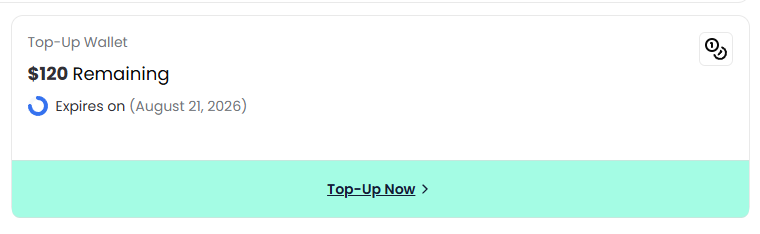
Click the option to top up credits.
-
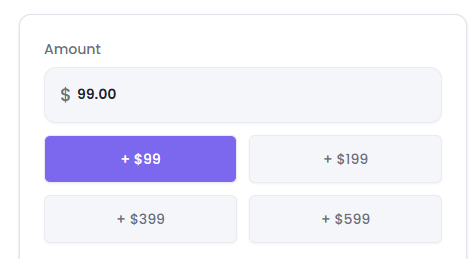
On the Top Up Credits page, enter the amount you want to add.
-
Minimum: $50
-
Maximum: $600
-
Or choose a quick-select amount from the available options.
-
-
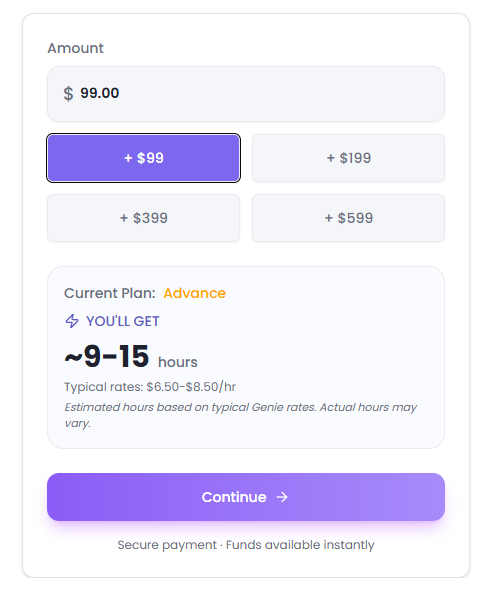
Review the info box — it shows your current plan, estimated Genie hours for the amount you entered, and the typical rate range for Genies available on your plan.
-
Click Continue to proceed to the Stripe payment gateway.

-
Complete payment.
Once payment is confirmed, you'll land on a Top-Up Successful page showing:
-
Amount added
-
Estimated hours gained
-
Your new credit balance
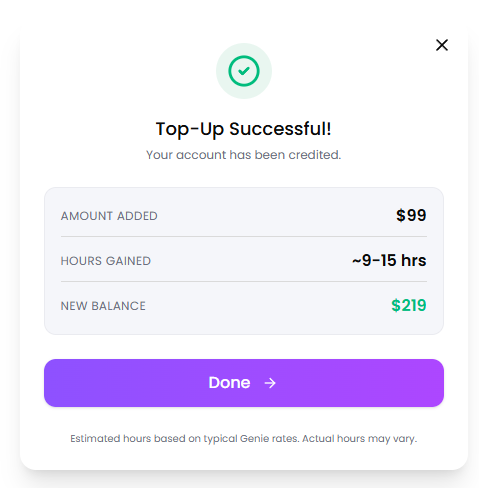
Click Done to return to your Dashboard.
If you're on Pay-As-You-Go (PAYG)
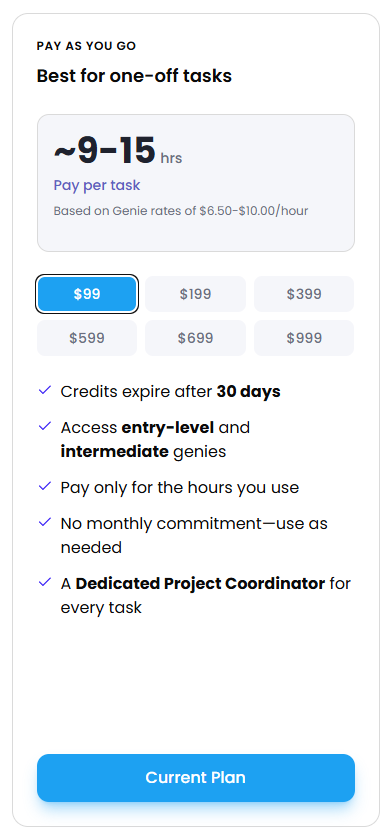
PAYG credits work as consumable top-ups rather than a recurring subscription. Each purchase gives you a set amount of credits with a fixed validity period.
Key things to know:
-
Credits from each PAYG purchase expire 30 days after purchase.
-
If you buy new credits while you still have unused ones from a previous purchase, the older credits keep their original expiry date. The new credits start their own 30-day clock.
-
If you have multiple PAYG batches with different expiry dates, the platform deducts from the batch expiring soonest first — so you don't lose credits unnecessarily.
-
PAYG clients can hire Genies with up to 7 years of experience.
After a successful PAYG purchase, you'll see a Purchase Successful page showing:
-
Credits added
-
Validity period
-
Expiry date
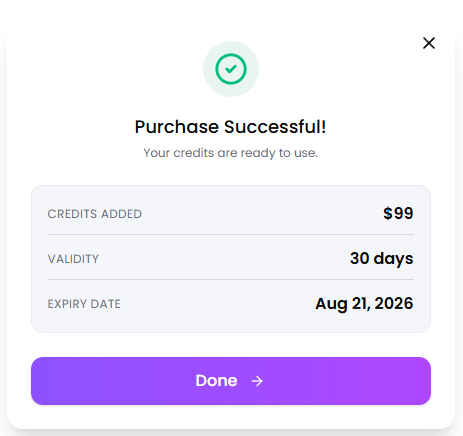
Click Done to return to your Dashboard.
New to RemoteGenies?
If you just registered, your account already has free starter credits to get you going — no purchase needed to try the platform. Check your balance on your Dashboard.
What happens if you don't have enough credits?
If your balance is too low to cover a task, you won't be able to move that task from Draft to Listed. You'll see:
"Insufficient credits to list this task."
Top up before trying to list the task again.
Where to check your balance
Your credit balance is visible on your Dashboard at any time. For full plan details and pricing, visit the RemoteGenies pricing page.