Set Up a Recurring Task
If you have a task that repeats on a regular schedule — weekly reports, monthly content updates, recurring admin work — you can configure it as a recurring task instead of creating it from scratch each time.
How to Set a Task as Recurring
-
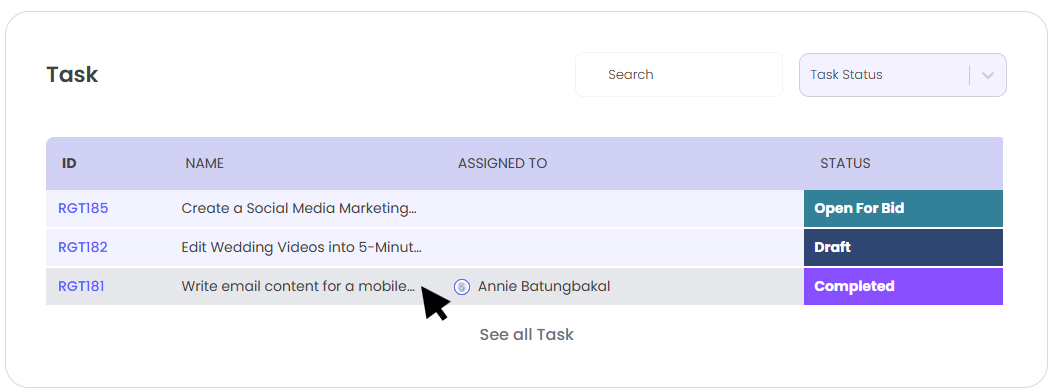
Open the task you want to repeat from your dashboard.
-
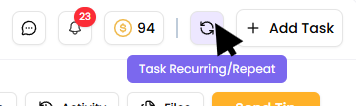
Select the Recurring / Repeat option on the task.
-
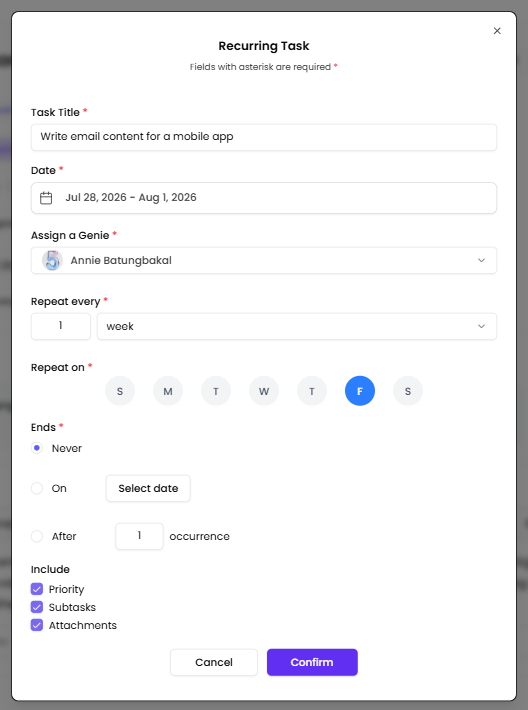
A recurring task pop-up will appear. Fill in the pop-up fields:
-
Title — Pre-filled with the original task title. You can edit it. This field is required.
-
Assign Genie — A dropdown lists all Genies you've previously worked with. The currently assigned Genie (or most recent) is selected by default. You can switch to a different one.
-
Repeat Every — Choose how often the task should be created automatically: daily, weekly, or monthly.
-
Include Options — Check any of the following to carry them over to each new task instance:
-
Priority
-
Subtasks
-
Attachments
-
Only the options you check will be copied. Anything left unchecked won't appear in future task instances.
-
-
Click Save / Confirm to activate the recurring schedule. A confirmation message will appear once it's set.
-
To exit without saving, click Cancel.

-
What Happens After You Save
Once saved, the platform automatically generates a new task based on your chosen recurrence interval. Each generated task follows the title, Genie assignment, and any included data you configured.
You don't need to do anything manually — the task will appear on your dashboard at the scheduled interval.
Notes
-
All required fields (title, at minimum) must be filled before you can save.
-
If any required field is missing, the form will show an inline error message pointing to what needs to be completed.
-
You can set up recurring tasks for daily, weekly, or monthly intervals only — no custom intervals (e.g., every 10 days) at this time.