Request or Add Extra Time to an In-Progress Task
There are two ways additional time can be added to an in-progress task:
-
Genie requests more time — the Genie submits a time extension request from the task timer, and the client approves or declines it.
-
Client adds hours directly — the client proactively adds more hours to the task without waiting for a request.
Both flows are covered below.
For Genies: Requesting a Time Extension
When can you request an extension?
The time extension option only becomes available when less than 20% of the originally estimated task time remains. Before that threshold, the option is not shown.
How to request extra time
-
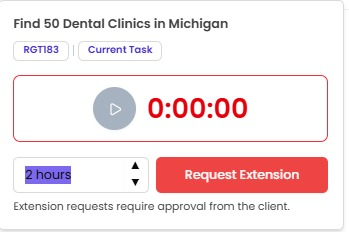
Open the task the task timer, located on the upper right.

-
Once the 20% threshold is reached, a time extension panel appears below the timer.
-
Use the hour dropdown to select how many additional hours you need.
-
Default selection: 1 hour
-
Increments of 1 hour
-
Maximum: 99 hours
-
-
Click Request Extension.
After submitting, you'll receive a notification confirming your request is pending client approval. The timer area will also show a status message indicating the extension request has been sent.
What happens after you submit?
What you see depends on the client's decision.
-
If the client approves your request: You will receive an approval notification and the approved hours will be added to your task timer. An extension approved badge will appear and the updated time will be displayed in your timer panel.

-
If the client declines your request: no additional time will be added. You will receive a rejection notification, and your task timer will continue running from where it left off.
For Clients: Responding to a Time Extension Request
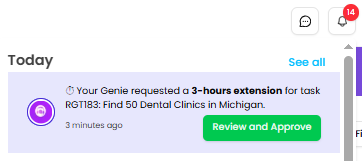
When a Genie submits an extension request, you'll receive a notification.
If your credit balance is sufficient
-
Click the notification to open the approval modal.
-
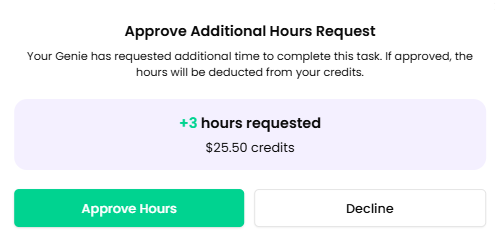
Choose an action:
-
Approve hours — the requested time is added to the Genie's timer immediately. Both you and the Genie receive an approval notification.


-
Decline — the request is rejected. The Genie receives a rejection notification. No time or credits are deducted.
-
If your credit balance is insufficient
A separate modal will appear indicating you don't have enough credits to approve the extension.
-
Click Top up now to add credits. After a successful top-up, the approval modal will reappear so you can proceed.
-
Click Cancel to close the modal without taking action.
For Clients: Adding Hours Directly (Without a Genie Request)
You can also add hours to an in-progress task on your own, without waiting for a Genie to request them.
How to add hours
-
Open the in-progress task.
-
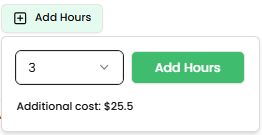
Click the Add Hours button located beside the Genie timer.
-
In the pop-up, use the hour dropdown to select the number of hours to add (1–99).
-
Click Add Hours.
If you have enough credits
-
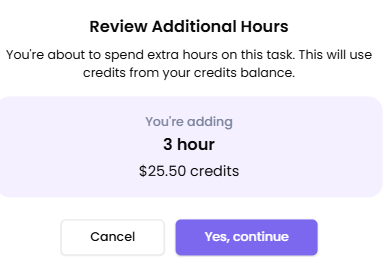
A Review Additional Hours pop-up appears showing:
-
The number of hours selected
-
The credit cost, calculated based on the assigned Genie's rate
-
-
Click Yes, continue to proceed.
-
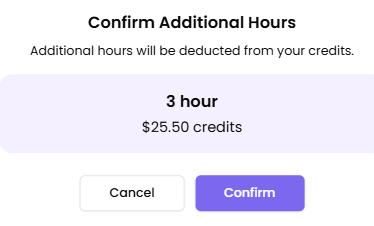
A Confirm Additional Hours pop-up appears with the same summary.
-
Click Confirm — the credits are deducted, and the selected hours are added to the task's bid hours.
An "Extension Approved" toast notification confirms the update.

If you don't have enough credits
An error message will appear in the Add Hours pop-up indicating insufficient credits.
-
Click Top up now to open the top-up flow.
-
After a successful top-up, you'll be returned to the task page to continue adding hours.
Note on top-ups: A minimum top-up amount applies. Once payment is processed through Stripe, the amount is added to your credit balance immediately.