Step 1: Post a Task on RemoteGenies
Posting a task is how you tell the platform what you need done. Fill in the form accurately — the more detail you give, the better your Genie matches and bids will be.
How to Open the Task Form
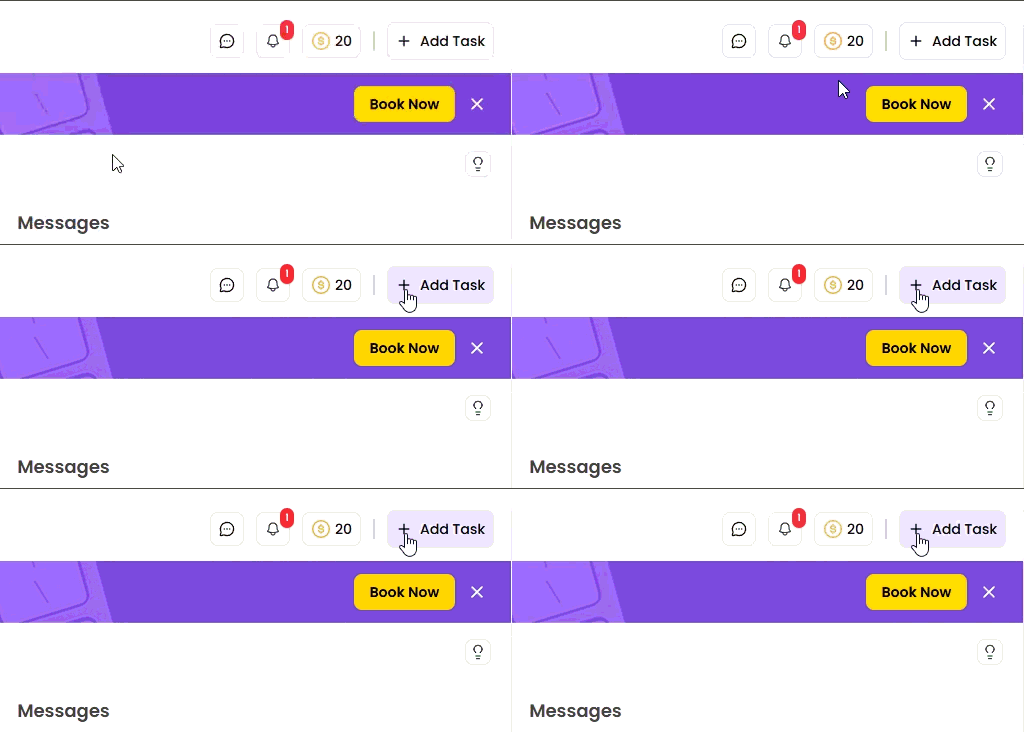
From your Client Dashboard, click + Add Task. A pop-up form opens.
The right panel of the pop-up shows a searchable list of task templates. If a template fits your work, select it — it will auto-fill the task name, expertise, skillset, and description fields. You can edit any auto-filled content without affecting the original template.
If no template fits, fill in the fields manually.
Fill In the Task Details
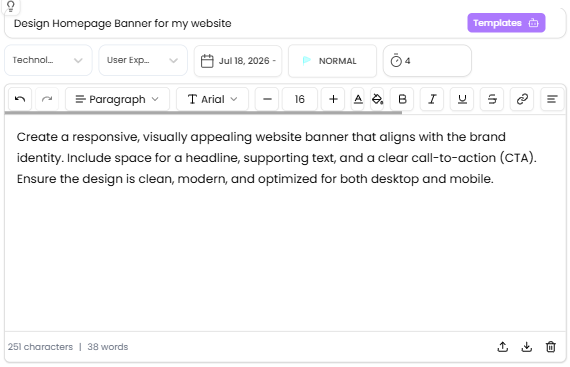
1. Task Name
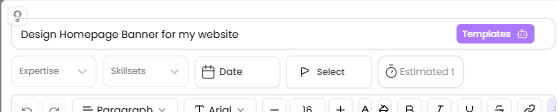
Type a short, specific title that tells a Genie exactly what the work is at a glance.
Example: Design Homepage Banner for my website
2. Expertise
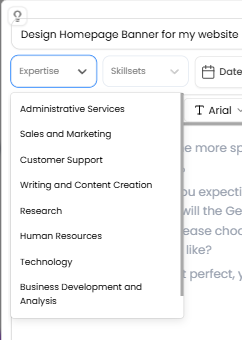
Select the domain that best fits the work — for example, Technology, Administrative Services, or Sales and Marketing.
3. Skillsets
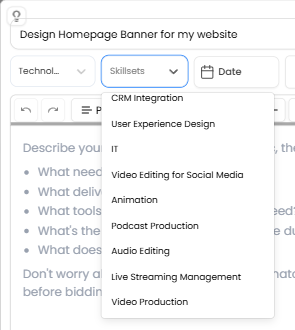
Pick the specific skills needed to complete the task. These are used to match your task with qualified Genies.
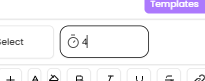
4. Estimated Time (Hours)
Enter the approximate number of hours you expect the task to take. This helps Genies assess scope before bidding.
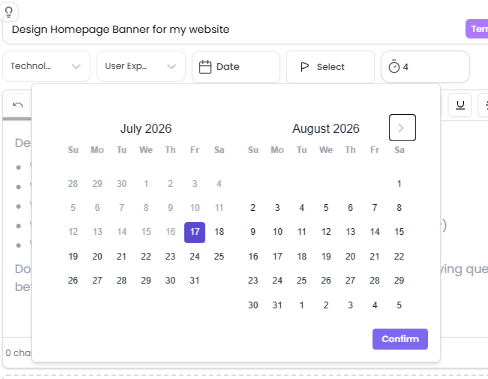
5. Date
Select the deadline or scheduled completion date using the calendar.
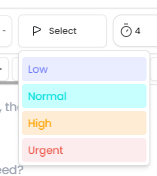
6. Priority
Set the urgency level: Low, Medium, or High.
7. Description
This is the most important field. The text box includes a built-in guide that disappears once you start typing. Use it as a checklist:
Describe your task here. The more specific, the better:
What needs to be done?
What deliverables are you expecting?
What tools or accounts will the Genie need?
What's the deadline? (Choose the due date from the calendar)
What does success look like?
Don't worry about getting it perfect — your matched Genies will ask clarifying questions before bidding.
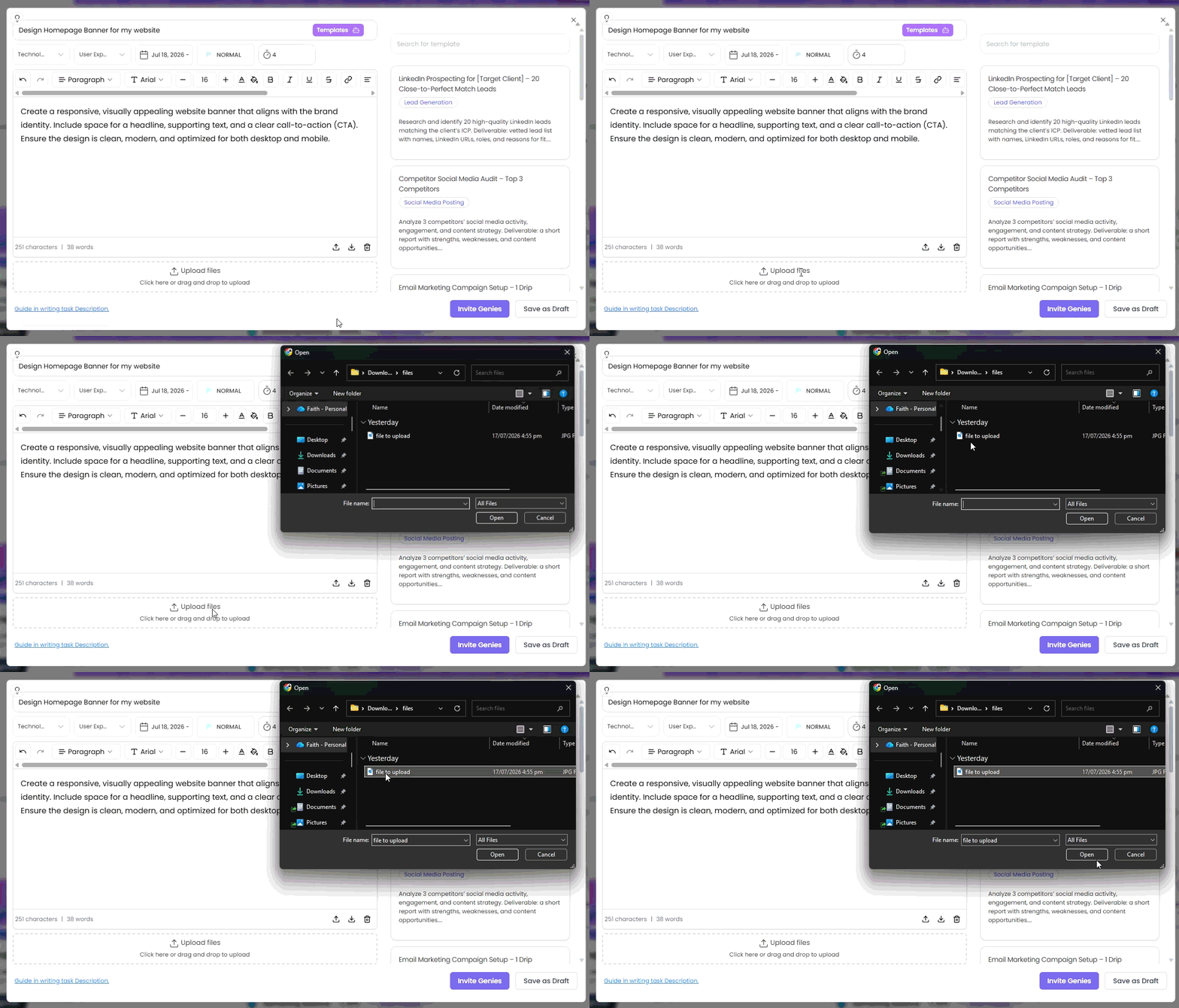
8. Attachments (Optional)
Drag and drop files into the upload area, or click to browse. Maximum file size: 5MB per file.
Attach anything that helps your Genie understand the task — briefs, brand kits, sample content, reference docs, spreadsheets.
Save or Publish
Once all required fields are filled in, you have two options at the bottom of the form:
ButtonWhat it doesSave as DraftSaves the task privately. Genies cannot see it yet. Come back to finish it later.Invite Genies / Open for BidsPublishes the task. You must invite at least 1 Genie before the task moves to Open for Bid status.
Important: If you click to open the task for bids without selecting at least one Genie to invite, the system will show an error. You need to invite at least 1 Genie to proceed.
If any required fields are missing when you try to publish, the system will highlight them and block submission.
What Happens After You Post
Once your task is live, the RemoteGenies team is notified and matched Genies will receive invitations to bid. You can track your task from the Client Dashboard under Current Projects.
Your next step is reviewing bids and selecting a Genie — covered in the Step 2 guide.
Full interactive demo
Click through the demo at your own pace — no login required.