Step 5: Track Progress While Your Genie Works
Your Task Page is the single place to monitor everything while your Genie is working — status, hours logged, subtasks, files, chat, and the full activity history. You don't need to chase anyone; it's all visible in real time.
Where to Find Your Active Task
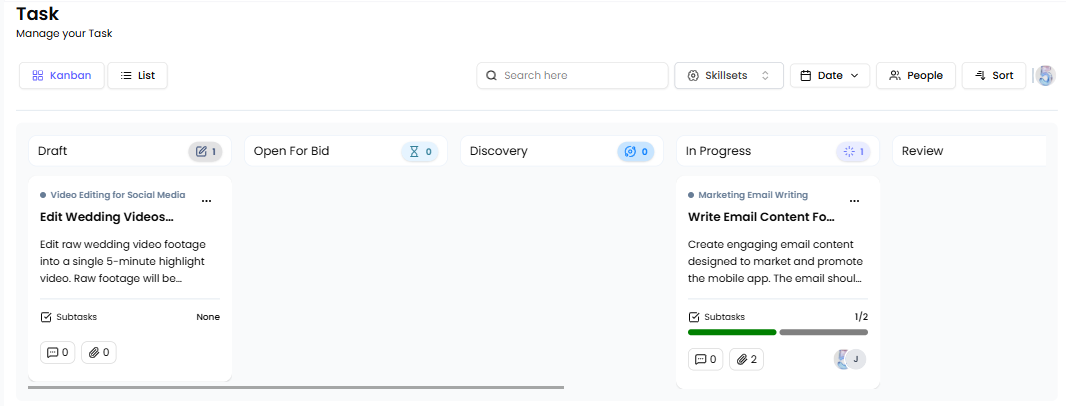
Go to your Task Board (Kanban view). Your task will be in one of the active columns — In Progress, Review, or similar. Click the task card to open the Task Details page.
Each card on the board shows at a glance:
-
Task title and description (first 100 characters)
-
Subtask progress (e.g., 1/2 completed)
-
Comment and attachment counts
-
Assigned Genie and coordinator avatars
What You'll See Inside the Task Page
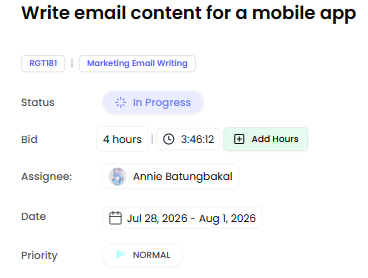
Task Overview
At the top of the task, you'll see:
-
Status — current stage (e.g., In Progress, Review)
-
Bid — bid hours and running task timer
-
Assignee — your assigned Genie
-
Dates — start and due date range
-
Priority — color-coded tag
All of these update in real time as your Genie or coordinator makes changes.
Subtasks
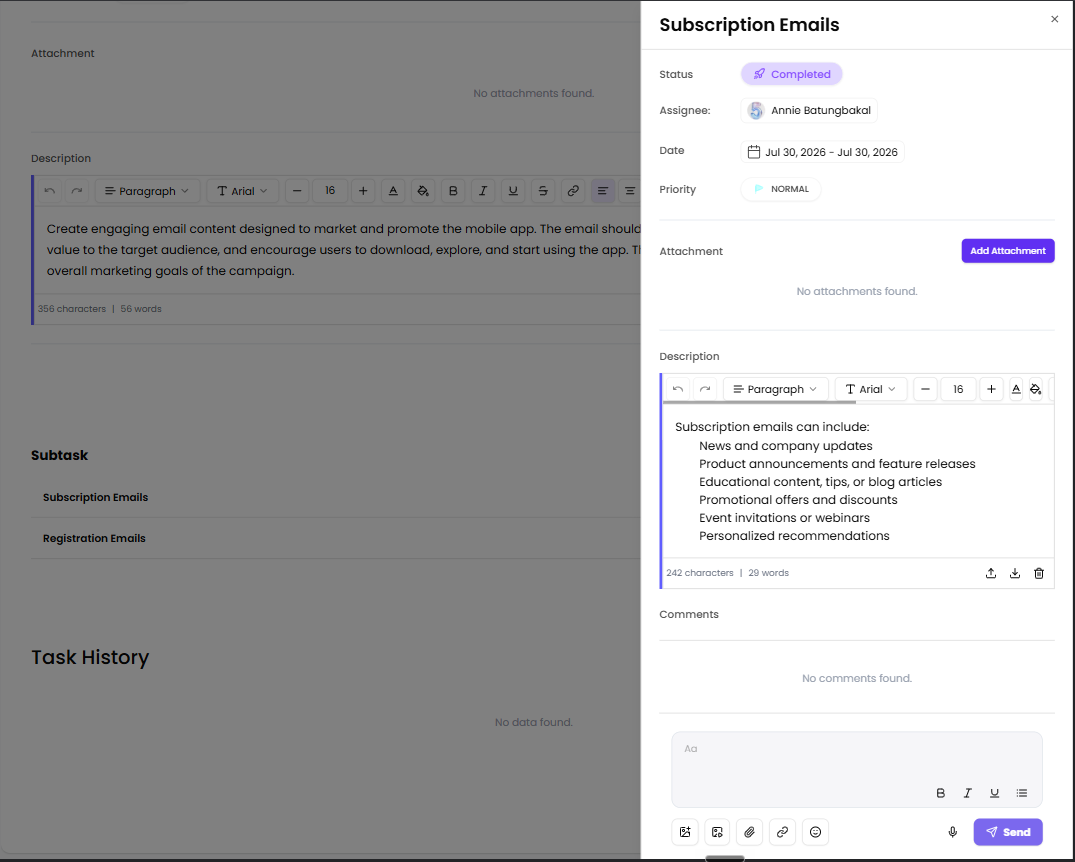
If your task was broken into subtasks, you'll see each one listed with its own title and status. A progress indicator shows how many have been completed (e.g., 2/5). Completed subtasks display a green bar. Click into any subtask to see its details, assignee, timeline, and description.

Attachments
Files uploaded to the task appear here. Each file shows the file name and size, with options to download or preview. Clicking a file opens a preview directly — no need to leave the task.

Collaboration Tabs
Four tabs sit alongside the task content. Use them to dig into specific types of updates.
-
Chat for conversation with your Genie and project coordinator. You can tag people using @mentions and attach files.
-
Comments for structured notes and instructions — good for clarifications that aren't part of the main chat flow.
-
Activity to view the full chronological log of everything that has happened on the task.
-
Files to see all attachments related to the task in one organized view.

Activity Log: The Complete Task History
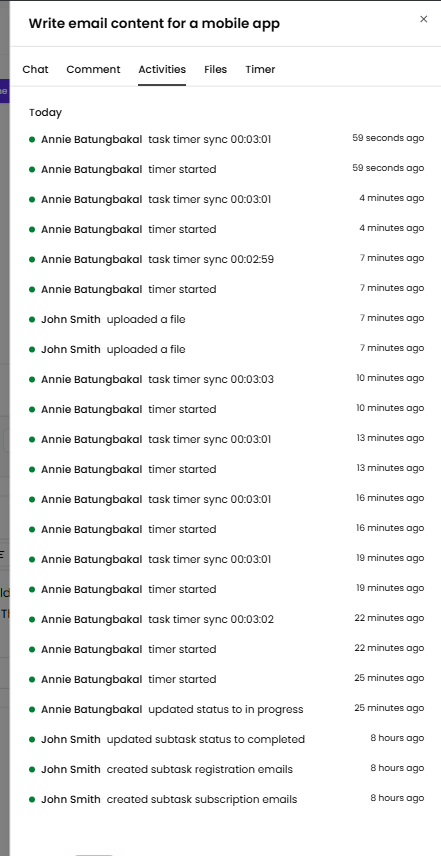
The Activity tab opens a slider from the right side of your screen. It shows every action taken on the task in chronological order, grouped by date (Today, Yesterday, and so on).
Each entry includes:
-
What happened (e.g., status changed, subtask created, file uploaded, comment added)
-
Who triggered it
-
Timestamp (e.g., 2 hours ago, 1 day ago)
The feed updates in real time — no page refresh needed. If there's nothing yet, you'll see a placeholder message until activity begins.
Email Notifications
You'll receive an email when your Genie moves the task from Discovery to In Progress. This is your signal that the clock is running. Keep your RemoteGenies account active from this point for fast coordination.
Status Flow: What to Expect
As your task progresses, the status moves through the following stages:
Draft → Open for Bid → Discovery → In Progress → Review → Approved → Completed
A few things to know:
-
As a client, you cannot move the task backward in status once a stage has passed.
-
Statuses assigned to the Genie (e.g., moving from In Progress to Review) are updated by the Genie, not by you.
-
Once a task reaches Approved, it will automatically move to Completed after 7 days if no action is taken.
The 7-Day Window After Approved
Once a task is marked Approved, a 7-day holding period begins. During this window:
-
You can still change the status to Dispute if you need revisions or fixes.
-
A Task Holding Period card is visible on the right side of the task page showing the remaining time.
After 7 days, the task is automatically locked as Completed. No further status changes or requirement updates can be made.
Your Project Coordinator
Your dedicated project coordinator is active inside the task chat throughout the process. They monitor progress, keep the Genie on track, and step in if anything needs to be resolved. You don't need to manage this directly — but if something looks off, message in the Chat tab and they'll handle it.
Full interactive demo
Click through the demo at your own pace — no login required.