How to Bid for Tasks as a Genie
You can only bid on tasks you've been invited to. Clients must invite at least one Genie before a task is opened for bidding — you won't find open tasks you haven't been invited to.
Where to Find Your Invitations
Log in and go to your Genie Dashboard. Look for the Invited to Bid section. Each task listed there shows:
-
Task name
-
Task ID
-
Time estimate
-
Task date
-
Priority
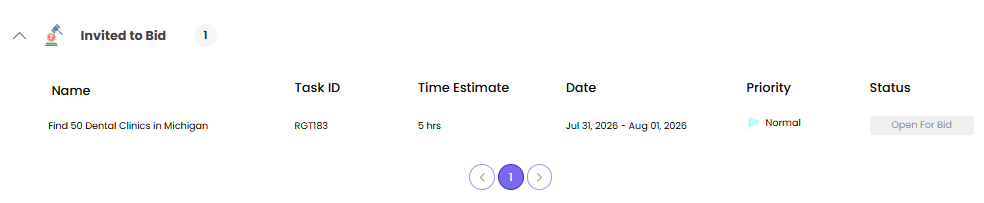
Tasks you haven't acted on display in the Invited to Bid section. Tasks you've already bid on will be moved to the Submitted Bids section.
How to Submit a Bid
-
Find the task in your Invited to Bid section.
-
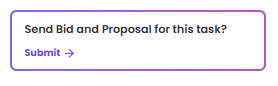
Click Send Bid on the task you want to apply for.
-
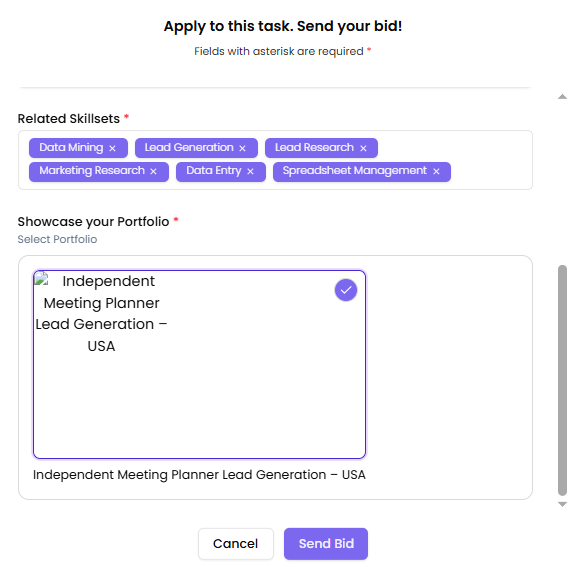
A proposal pop-up will appear. Fill in the following:
Bid Hours (required)
Enter the number of hours you estimate the task will take. Numeric values only — this field cannot be left blank.Why are you the right fit for this task? (required)
Write a clear explanation of why you're suited for this work. Maximum 500 characters. A character counter is shown below the text box.Related Skillsets (optional)
Select skills relevant to the task from your registered skillsets. You can select multiple.Showcase Portfolio (required)
Pick up to 3 portfolio items to include in your proposal. If you have no portfolio items yet, you'll see a prompt to add them from your profile.
-
Click Send Bid. The button stays disabled until you've filled in all required fields.
-
Once submitted, you'll see a success confirmation. The task will now show on the Submitted Bids section of your dashboard.

If you want to cancel, click Cancel. If you've already started filling in the form, you'll be asked to confirm before your draft is discarded.
If You Run Into an Error
If you see an error message after clicking Send Bid, your bid may or may not have gone through. Before trying again:
-
Refresh the page and check if the task now shows Submitted Bids section
-
If it does, your bid was submitted — no need to resubmit.
-
If it still shows in Invited to Bid, try submitting again.
What Happens Next
Once you've submitted, the client reviews all bids and selects the Genie they want to work with. You'll receive an in-app notification when your bid is accepted or not accepted.