Set or Update Your Availability as a Genie
Managing your availability
You can control when you're available for interview bookings by setting your weekly schedule in your account settings. This directly affects the time slots clients see when they try to book a call with you.
How to set your availability
-
Go to your profile settings.
-
Click the Availability button at the top of your profile page — this takes you to the availability setup page.
-
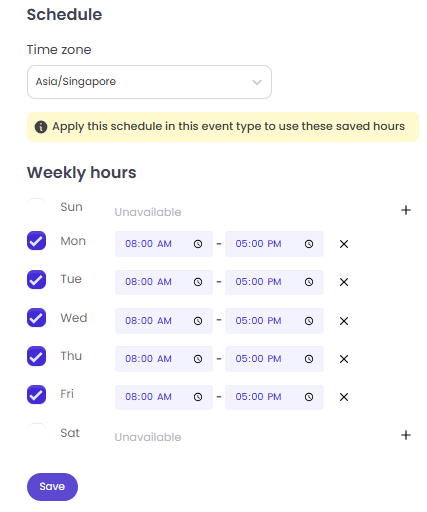
Select your time zone. It will be displayed on the schedule so there's no confusion about what hours you're offering.
-
For each day of the week, check the box to mark yourself as available, or leave it unchecked to mark that day as Unavailable.
-
For each available day, set your start and end times using the 12-hour (AM/PM) format.
-
Use the + button to add multiple time slots in a single day if needed.
-
Use the ✕ button to remove a time slot.
Save your changes when done.
How to pause your availability
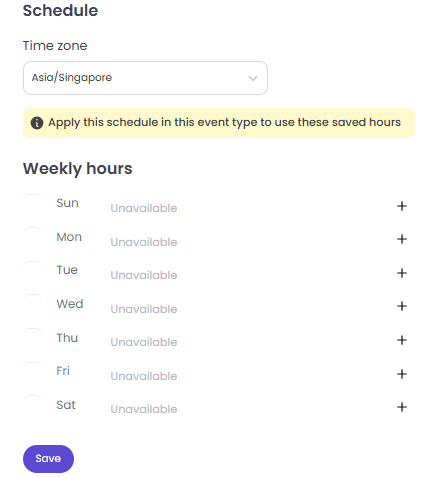
There is no dedicated "pause" toggle. To stop clients from booking you, uncheck all days in your availability schedule — every day will then show as Unavailable, and no time slots will appear for booking.
When you're ready to take work again, go back and re-enable the days and times you want.
If your availability isn't showing up for clients
If you've set your hours correctly but clients still see "No time available" on the booking calendar, your settings may not have synced properly. Double-check your saved availability, and if the issue persists, reach out to your project coordinator or contact Jinni directly.
Things to know
-
Your availability schedule determines which time slots appear when a client tries to book an interview call with you.
-
Clients cannot edit or modify your availability — that access is yours only.
-
Rescheduling or cancelling an already-booked meeting is separate from availability settings. Those actions are handled from the meeting lobby, and are only possible if the meeting is more than 3 hours away from its scheduled time.